

These instructions are for saving and opening a PDF fillable form using a link. For saving and opening from an email attachment, follow these alternate instructions.
Avoiding the "Please wait..." message
Some users see an error message like the following when trying to save or open the affidavit.
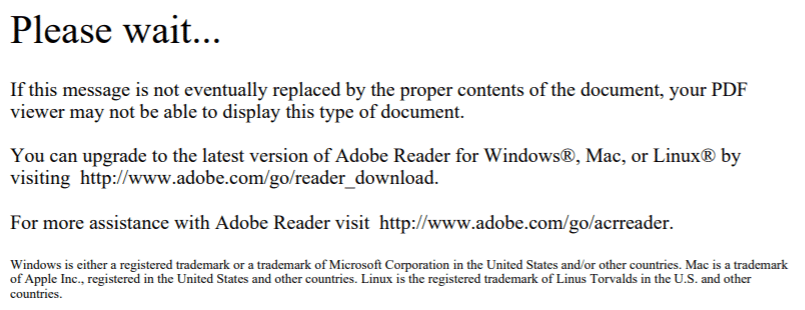 |
Despite what the error message states, waiting is virtually guaranteed not to resolve the issue. When you see this message, it means that your computer has tried to open the affidavit in some software other than Adobe. For example, if you simply clicked on the link to the affidavit, then your web browser probably tried to open the affidavit, and that will not work. Even if you saved the affidavit to your computer’s internal drive, double-clicking the PDF may open the file in non-Adobe software, which again will not work.
To succeed in using the affidavit, you should follow these steps to save and open it:
Saving the affidavit using a link
NOTE for Mac users: Where the instructions say to "right click", you will need to Control-click instead.
- Right click the link.
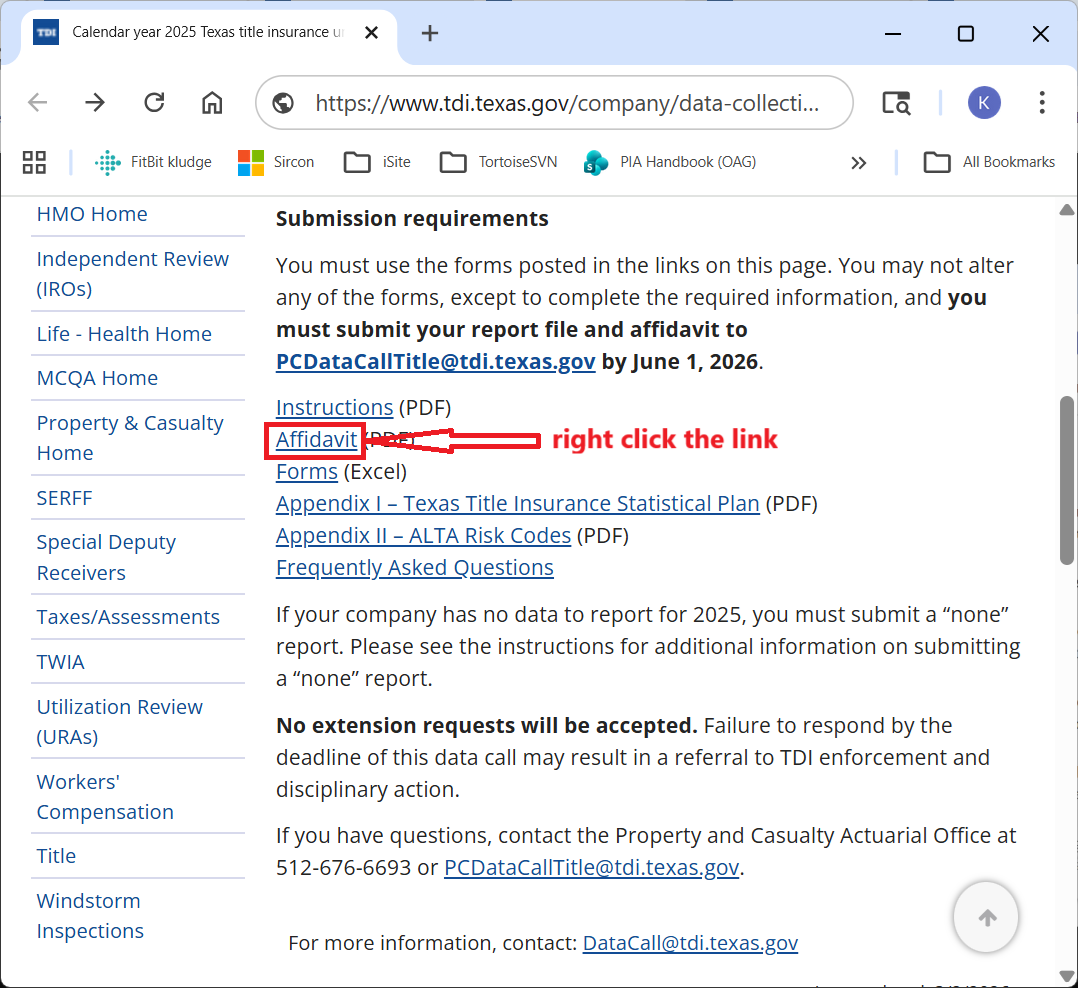
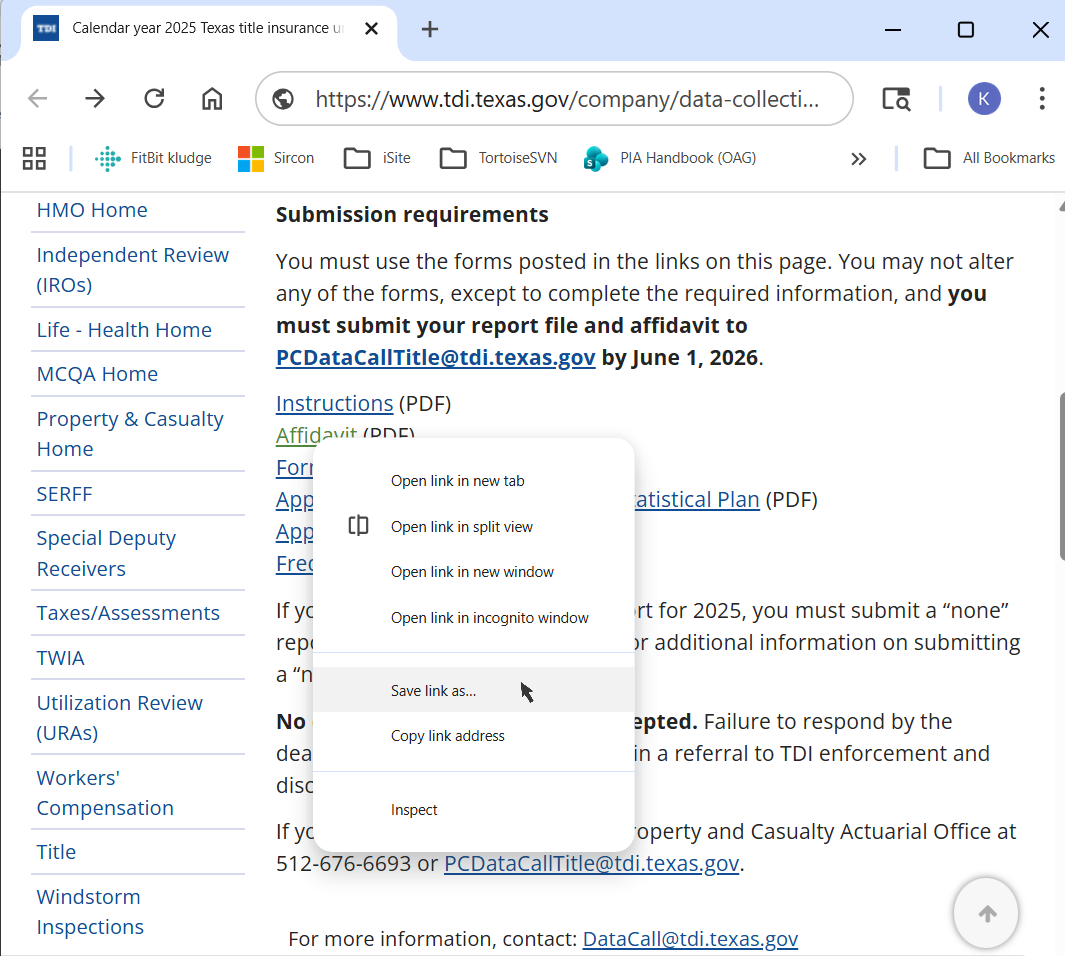
- Choose "Save link as..." from the menu that pops up.
- In the file save dialog, note both the folder path and the file name since you will need them in order to find the saved affidavit later. Then, click the Save button.

Opening the saved affidavit
NOTE for Mac users: Where the instructions say to "right click", you will need to Control-click instead.
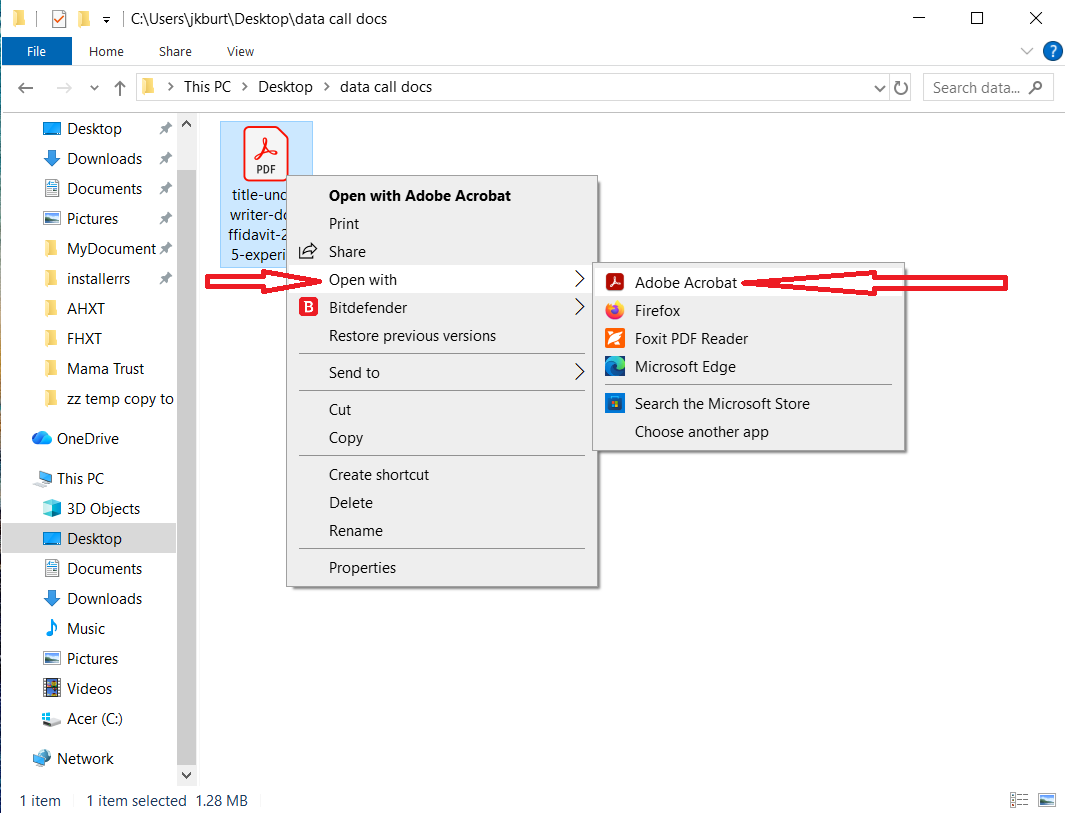
- Navigate to the folder where you have saved the affidavit. Right click the saved affidavit, so that a context menu pops up. In the menu, select "Open with" followed by "Adobe Acrobat", "Adobe Acrobat Reader", or another recent version of Adobe. In case the menu opens but does not show an Adobe application, then you need to install a recent version of Adobe.
- If the affidavit opens to a page with content like the following, then you can continue to complete the affidavit, print it out, get it signed and notarized, scan it, and then email the scan to PCDataCallTitle@tdi.texas.gov.
 If instead the affidavit opens with a "Please wait..." message, then it has opened in the wrong application. You should repeat step 1 above, being careful not to double-click the file and to select the Adobe application from the list of menu options.